
Appearance
Google OAuth 2.0 / OIDC SSO Setup for Admins
See also: OIDC and SSO, Identity and Access, Configuration Reference
Oceans LLM can use a Google Auth Platform OAuth 2.0 Client for browser sign-in. Configure Google through Oceans' existing generic OIDC provider; you do not need gateway code changes or a separate Google provider type.
Google documents this authentication flow in OpenID Connect.
Before You Start
You need:
- a Google Cloud project where you can configure Google Auth Platform
- a public HTTPS URL for Oceans LLM, such as
https://oceans.example.com - permission to store the Google client secret in your deployment secret manager
- a decision about who may sign in and whether Oceans should create users through JIT provisioning
The callback URL for one deployment is:
text
https://<your-oceans-host>/api/v1/auth/oidc/callbackGoogle requires an exact redirect URI match. Do not use a wildcard, change the path, or add a trailing slash.
Choose the Google Audience
Choose the audience before creating the OAuth client. Google describes the account and publishing boundaries in Manage App Audience:
- Prefer Internal when Oceans is only for one Google Workspace or Cloud Identity organization. Google limits authorization to accounts in that organization. The Google Cloud project must belong to the organization for this option to be available.
- External permits Google Accounts outside your organization. Keep Oceans JIT provisioning disabled unless you intentionally want any Google identity accepted by the provider to be eligible for account creation.
External is not an Oceans access policy
Oceans requests only the basic openid, email, and profile identity scopes. Google states that users do not need to be on the External audience's test-user list when an app requests only these basic identity scopes. Use invited users with jit.enabled: false, or explicitly accept the broader JIT behavior.
Oceans validates Google's stable sub, email, and email_verified claims. It does not enforce Google's Workspace hd claim and generic OIDC providers do not support allowed_email_domains. Use an Internal audience when Google must enforce organization membership.
Configure Google Auth Platform
Open Google Auth Platform and select the project that owns the OAuth client.
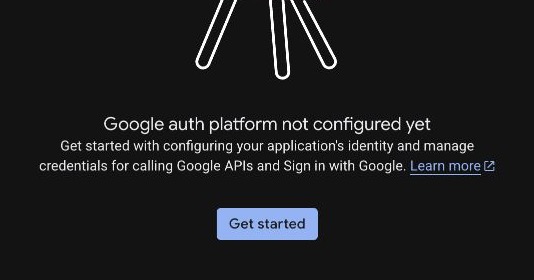
If the project has not configured Google Auth Platform, choose Get started.
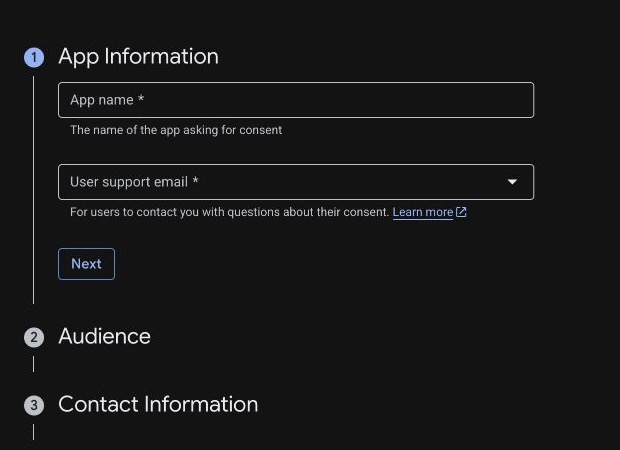
Complete the project configuration:
- Under App Information, enter the name users should see, such as
Oceans LLM, and select a monitored support email. - Under Audience, choose Internal or External using the access guidance above.
- Under Contact Information, add an email that Google can use for project notifications.
- Review the settings and choose Create.
In Branding → Authorized domains, add the top private domain for the public Oceans host before creating the client. For example, add example.com for oceans.example.com. Google requires you to register domains that redirect URIs use. If Google requires domain verification, a project owner or editor must verify the domain property in Google Search Console.
In Data Access, keep the requested identity data limited to:
openidemailprofile
Oceans does not need Google Drive, Gmail, Calendar, or other Google API scopes for SSO.
Create the OAuth 2.0 Client
Open Google Auth Platform → Clients, then:
Choose Create client.
Select Web application as the application type.
Enter an admin-recognizable name, such as
Oceans LLM production.Leave Authorized JavaScript origins empty. Oceans performs the authorization-code exchange on the gateway, not in browser JavaScript.
Under Authorized redirect URIs, add exactly:
texthttps://<your-oceans-host>/api/v1/auth/oidc/callbackChoose Create.
Record the client ID and copy the client secret into your deployment secret manager. Do not put the secret in
gateway.yamlor commit it to the repository.
Create a separate OAuth client for each Oceans deployment that has a different public callback URL.
Store the Google Credentials
Expose the client secret and public Oceans URL to the gateway using deployment secrets or environment variables:
text
GOOGLE_OIDC_CLIENT_SECRET=<google client secret>
GATEWAY_PUBLIC_BASE_URL=https://<your-oceans-host>
GATEWAY_PUBLIC_BASE_URL must resolve to the same public origin used in Google's authorized redirect URI.
Copy the Google client ID into the provider configuration. Google client IDs are public identifiers; generic OIDC client_id does not resolve an env.* reference in the current configuration contract.
Configure Oceans LLM
Add Google under auth.oidc.providers:
yaml
auth:
  oidc:
    public_base_url: env.GATEWAY_PUBLIC_BASE_URL
    providers:
      - key: google
        label: Google
        issuer_url: https://accounts.google.com
        client_id: <google client id>
        client_secret: env.GOOGLE_OIDC_CLIENT_SECRET
        scopes:
          - openid
          - email
          - profile
        enabled: true
        jit:
          enabled: false
          global_role: user
          request_logging_enabled: true
Keep jit.enabled: false for pre-provisioned access. Admins can declare a user in config or create the user in the control plane with the google OIDC provider. Apply provider and user config through the deployment-specific seed path in Runtime Bootstrap and Access, then follow the shared SSO sign-in flow. For invite-only access, the verified Google email must match the normalized Oceans user email.
If you enable JIT:
- an Internal Google audience makes every eligible identity in the Google organization a potential Oceans user
- an External Google audience can make any eligible Google Account a potential Oceans user
global_roleand any configured team membership apply to every JIT-created Google user- existing password users are not automatically linked by matching email
Do not grant platform_admin through JIT unless every identity allowed by the Google audience should receive that role.
Verify Sign-In
After applying and reconciling the provider and user config:
- Open
https://<your-oceans-host>/api/v1/auth/oidc/providersand confirm the response includes the enabledgoogleprovider. - Complete the shared SSO sign-in flow with an eligible account.
- Confirm the browser returns to the correct Oceans UI for the assigned role:
platform_adminusers open the full admin control plane.userusers open/admin/observability/usage-costsand can inspect only their own usage, request logs, and MCP invocations.
Troubleshooting
Google reports redirect_uri_mismatch
Compare Google's authorized redirect URI with the callback Oceans derives from auth.oidc.public_base_url. The scheme, host, port, path, case, and trailing slash must match exactly.
Sign in with Google is not shown
Confirm that the config enables the provider, its client secret resolves successfully, and the provider appears at /api/v1/auth/oidc/providers.
Google sign-in succeeds but Oceans rejects the identity
Check the Oceans user policy:
- with JIT disabled, the user must have an invitation or config-declared OIDC link for provider key
google - a password user with the same email is not automatically converted or linked to Google SSO
- Google must return both
emailandemail_verified: true - disabled Oceans users remain denied
Google sign-in returns to the login page
Google uses the generic OIDC callback while GitHub uses its provider-specific OAuth callback. Both callbacks create the same Oceans browser session and then apply the same role-based UI redirect.
Confirm /api/v1/auth/session returns the signed-in user. If it does, use the role-based UI contract in Identity and Access to verify the landing page and available pages. If the session endpoint returns no user, inspect gateway logs for the OIDC callback error and confirm the public base URL and cookie origin match the browser origin.
A user outside the organization can authorize the app
An outside user may still see the Oceans sign-in option and reach Google's authorization page. With an Internal audience, Google should reject authorization with an org_internal error. If the user completes authorization and returns to Oceans, confirm the audience is Internal and that the project belongs to the intended Google Workspace or Cloud Identity organization. Oceans does not enforce Google's hd claim itself.
Security Notes
- Prefer an Internal audience for organization-only deployments.
- Keep JIT disabled unless the Google audience and assigned Oceans role are intentionally broad enough for automatic user creation.
- Keep the Google scopes limited to
openid,email, andprofile. - Store the client secret in a secret manager and rotate it after exposure.
- Use HTTPS in production; Google permits HTTP redirect URIs only for localhost development.
- Treat Google audience configuration and Oceans user/JIT policy as separate controls and review both before enabling sign-in.